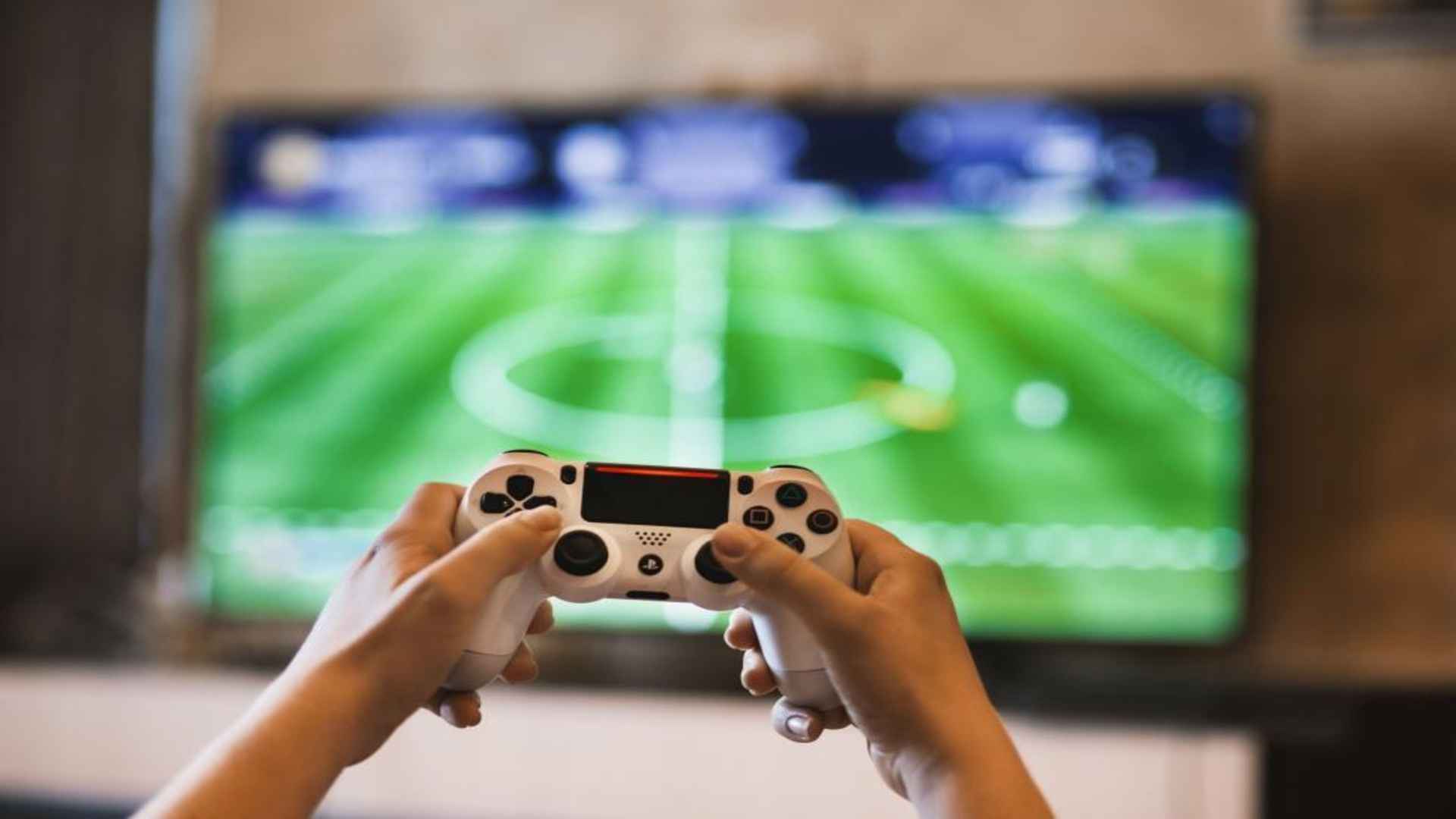
Connecting a PlayStation 5 DualSense controller to a PC is fully supported and offers an exceptional gaming experience for desktop players. Modern operating systems recognize the gamepad natively through both wired and wireless connections. Understanding how to configure the controller properly ensures you get the most out of its advanced features.
Understanding PS5 Controller PC Compatibility
The PS5 DualSense controller uses standard USB and Bluetooth protocols, making it broadly compatible with Windows 10 and 11 PCs. Major gaming platforms like Steam provide built-in configuration tools that map inputs automatically for almost any game. However, native support for advanced haptic feedback and adaptive triggers varies depending on the title and connection method.
For full feature support, many modern titles require a direct wired connection via a USB-C cable. While Bluetooth offers convenient wireless play, it may limit high-fidelity rumble effects in select games. Checking individual game specifications helps ensure you receive the full immersive feature set.
Setting Up the Connection via USB or Bluetooth
To connect using a USB-C cable, simply plug one end into the DualSense and the other into an available USB port on your computer. Windows will instantly detect the device as a standard audio and input controller without needing manual driver installations. This plug-and-play method guarantees the lowest latency and steady power delivery during long gaming sessions.
For wireless setup, enable Bluetooth on your PC and place the controller into pairing mode by holding the Create button and PS button together until the light bar flashes. Select the gamepad from your PC Bluetooth device list to complete pairing. Once connected, your computer will remember the pad for future wireless gaming.
Configuring Settings in Steam and Other Launchers
Steam offers comprehensive support for the DualSense controller through its input settings menu. Enabling PlayStation Controller Support allows you to customize button layouts, adjust analog stick deadzones, and configure trackpad functionality across your entire library. Non-Steam games can also be launched through Steam to benefit from these robust remapping tools.
For titles outside of Steam, third-party software wrappers can emulate an Xbox controller to ensure universal compatibility with older games. Maintaining updated firmware via Sony official PC updater app also enhances device stability and improves overall input responsiveness.
Maximizing Audio and Haptic Features on PC
The DualSense controller includes a built-in speaker and headphone jack that Windows recognizes as an external audio playback device. Adjusting your system sound settings prevents Windows from routing main game audio through the controller speaker accidentally. Keeping audio routing configured properly maintains crystal clear sound through your primary desktop speakers or headset.
Developers continue to expand native DualSense support for PC releases, bringing console-quality tactile feedback to desktop rigs. Utilizing official USB connections ensures you experience dynamic trigger resistance in supported titles. Taking time to fine-tune your configuration leads to a seamless, high-performance gaming setup.